

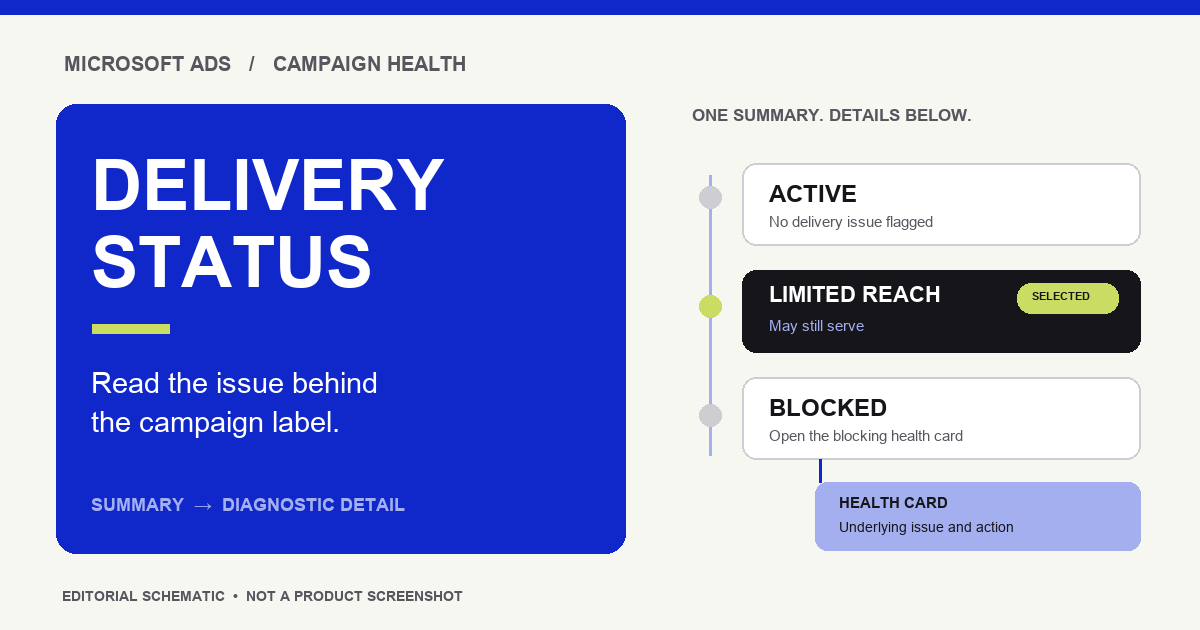
Short answer: Microsoft Ads campaign delivery status is a summary of the highest-priority issue Microsoft sees for a campaign. It tells you where to start, not the full diagnosis. Select the status in the Campaigns grid and read the underlying health cards. Limited Reach means the campaign can still serve; Blocked means an account, billing, campaign, or configuration issue is preventing delivery. Microsoft Advertising Help: Delivery status.
The newer campaign-level status experience is not available to every account yet. If you do not see those labels in the Campaigns grid, check the Delivery column and detailed status for the individual campaign components.
This guide explains the campaign-level summary and how to trace it to the action that needs attention. It is separate from keyword-level states and from performance reporting.
What the campaign delivery status summarizes
The Campaigns grid displays one aggregate status for each campaign. When several issues are present, the grid shows the highest-priority issue. A diagnostics side panel and health cards provide the underlying details, so the summary label alone may not show every remaining problem.
| Campaign status | What it means | First check |
|---|---|---|
| Active | No issue is preventing or limiting delivery in the campaign health view. | No delivery-health action is needed. Review campaign results separately to assess performance. |
| Limited Reach | The campaign can serve, but one or more issues may restrict its reach or performance. | Open the diagnostics panel and review the health cards. |
| Processing | The campaign or a required component is being processed or reviewed. | Read the detailed issue to see whether to wait or complete an action. |
| Blocked | An account, billing, campaign, or configuration issue is preventing delivery. | Open the blocking health card and address the stated cause. |
| Paused | The campaign is paused and is not serving. | Check whether the pause was intentional before reactivating it. |
| Ended | The campaign end date has passed. | Review the schedule if the campaign is meant to run again. |
| Out of Budget | The budget is exhausted or insufficient for the available traffic. | Inspect the campaign’s budget and pacing before changing it. See our guide to Microsoft Ads daily budget versus actual spend. |
Microsoft documents these as aggregate campaign statuses in the Campaigns grid. Lower-level entities still have detailed or legacy statuses in their own views. Do not assume a label in a keyword or ad-group table is the same as the campaign summary.
Where to find the issue behind the label
In Microsoft Advertising, open Campaigns and locate the campaign’s Delivery column. Select the status to see the diagnostic details and available actions. The side panel groups campaign issues into areas such as Account, Billing, State, Bids, Ad Components, and Targeting.
Start with the health card that matches the campaign’s aggregate status. For example, a billing or account issue can block delivery even when the campaign’s own settings look correct. A status such as Limited Reach is different: the campaign can still serve, so use the card to identify what is constraining it before changing bids, targeting, or budget.
A practical sequence for diagnosing delivery
1. Open the campaign status, not just the summary label
Select the Delivery status in the Campaigns grid and read the issue description in the diagnostic panel. Use the action shown on that card when it directly addresses the issue. Avoid treating the aggregate label as a complete list of every delivery problem.
2. Confirm which level has the issue
A campaign, ad group, ad, keyword, audience association, dynamic ad target, and asset can each have a delivery or policy status. If the campaign summary points to a component, open that component’s own Delivery or Policy status and follow the detail there. Our guide to Microsoft Ads campaign versus ad-group structure explains which settings belong at each level.
3. Make the smallest relevant correction
Use the health card’s explanation and available action. A campaign-level block may require an account or billing change; a schedule issue points to dates; a targeting issue belongs to the targeting scope. Do not raise bids or expand reach simply because the summary says Limited Reach unless the detail identifies a bid or targeting issue and the change fits the campaign goal.
4. Recheck the Delivery column
After a successful fix, Microsoft says the affected health card updates and the campaign status changes. If another issue remains, the grid may show the next highest-priority status. That change does not necessarily mean the first correction failed; it may reveal another issue that was already present.

How Microsoft prioritizes multiple issues
When several campaign issues exist, Microsoft lists the aggregate-status priority as:
- Ended
- Paused
- Blocked
- Processing
- Out of Budget
- Limited Reach
- Active
Because the grid shows the highest-priority status, open the diagnostics panel before concluding that no other issue exists. Once the leading issue is resolved, review the new status and its corresponding health card.
Common interpretation mistakes
- Treating Limited Reach as fully stopped. Microsoft defines this as a campaign that can still serve but may have restricted reach or performance.
- Treating Active as a performance result. Active means the campaign health view has no issue preventing or limiting delivery. It does not establish lead quality, sales, or return.
- Changing a keyword when the block is at account level. Follow the scope named in the health card. A campaign summary can reflect a billing or account issue that keyword edits cannot solve.
- Assuming every account sees the new campaign-level labels. Microsoft’s help page says the feature has not rolled out to everyone. Use the detailed Delivery column in the views available to your account.
- Confusing delivery with conversion tracking. Campaign delivery status does not validate whether UET or a conversion goal records the intended action. For tracking checks, see our guide to Microsoft Ads UET tag and goal status.
A short example
A campaign shows Limited Reach in the grid. Open its status and read the health cards instead of assuming the campaign stopped. Make the specific correction identified by the card, then return to the Delivery column. If Out of Budget appears next, inspect that new card and review the pacing context before changing the budget. The second status may be the next unresolved issue, not evidence that the first action had no effect.
In short: use the campaign status as a route into diagnostics. Read the underlying health card, fix the issue at the correct level, and check the grid again. The label is a starting point; the detail determines the next action.
How did this article land?
Choose one reaction. You can change it anytime.