

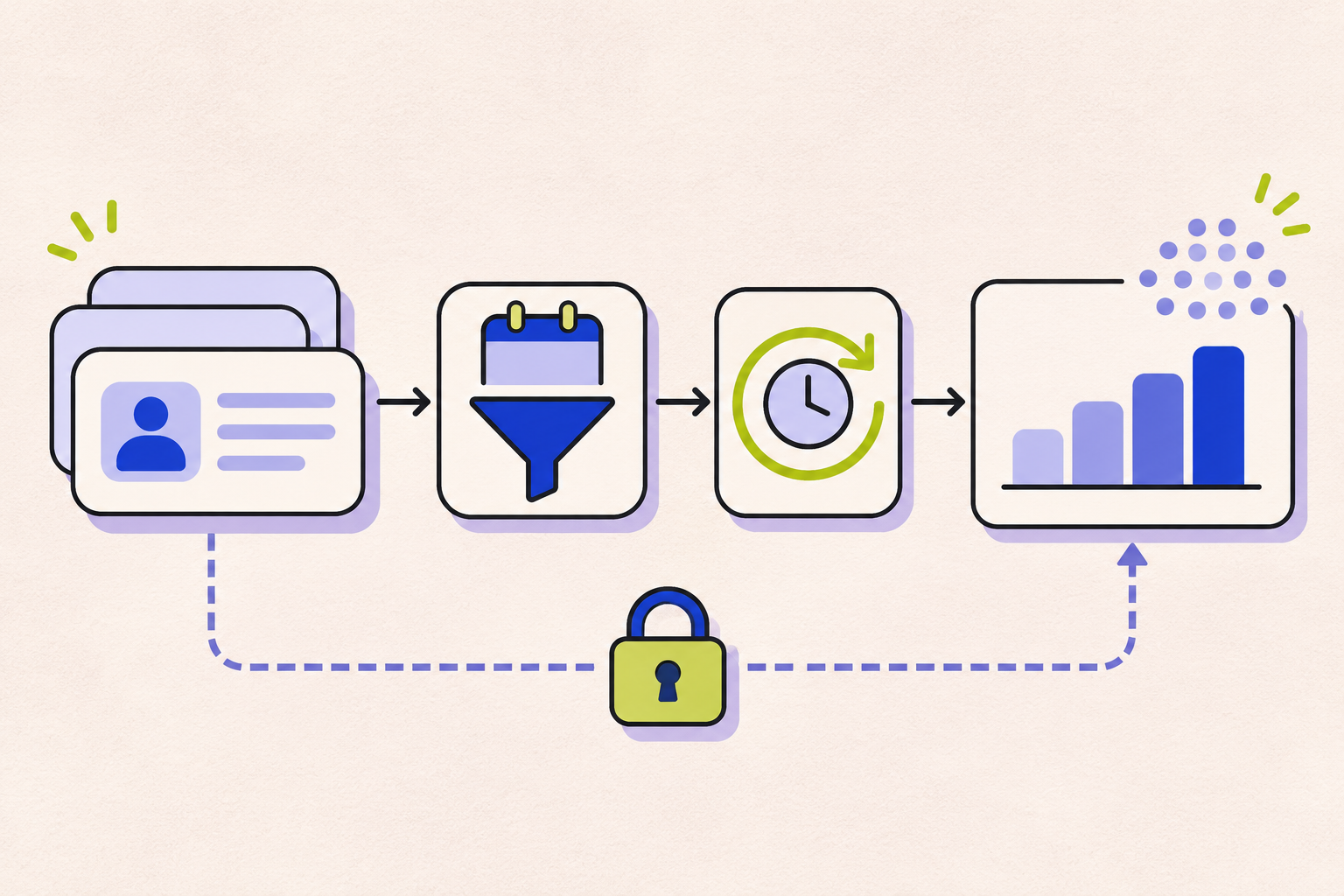
A HubSpot report showing no data does not automatically mean the CRM records are missing. The report may be filtering out real records, using a different date or data source, waiting for its next refresh, or showing a permission or visualization limit. Diagnose the first point where the expected records disappear before rebuilding the report.

First identify what “no data” means
Start with the exact report and one record that should appear in it. Then classify the symptom:
| Symptom | First place to check | What it may reveal |
|---|---|---|
| The underlying CRM view also has no matching records | Object, property values, record status, and the period you expect to report on. | The source data may not meet the business rule or may not exist yet. |
| The CRM view has records, but the report is empty | Report filters, date property, owner/team values, data source, and AND/OR logic. | A filter or report definition is excluding the records. |
| The report works in the report library but is blank on a dashboard | Dashboard-level filters, current dashboard URL, chart breakdown, and viewer access. | The dashboard adds another filter or the visualization cannot display the report. |
| One user sees data and another sees none | CRM record, data source, field, owner, and team permissions. | Access to the report itself may not include access to its underlying data. |
1. Confirm the records and fields exist
Choose one deal, contact, or other record that you expect the report to include. Open the record and verify the object type and the values used by the report: date, owner, stage, source, amount, or other filtered properties. If a key property is blank or has a different value than expected, a report filter may correctly exclude that record.
For a deal report, compare the report with a filtered deals view that contains the missing deals. HubSpot recommends checking the pipeline, deal stage, attribution or category filters, and the date property and range. A report filtered by Close date answers a different question from one filtered by Create date; changing the date field is only a fix when it matches the metric you intend to report.
For other report types, use the same principle: confirm the expected records in the source object first. Then compare against a simple report with a small number of fields, such as record count, date, and owner. If the simple report includes the record but the original does not, the difference is in the original report’s logic or display.
2. Reset report filters, then add them back one at a time
In the report viewer, inspect the search filter, date range, quick filters, and advanced filters. Resetting the filters gives you a useful baseline. Then reapply each condition in order and note when the expected record disappears. This is faster and safer than deleting several filters at once and losing the logic the report was meant to express.
Check whether the report uses AND or OR conditions. With AND, a record must satisfy every condition in that group; with OR, it only needs to satisfy one condition in the group. A combination such as “owner is Alex” AND “stage is Closed Won” can produce no rows if the record is owned by someone else or is still open. HubSpot’s report-filter guide explains the filter controls and grouping logic.
There is a less obvious blank-value trap in custom reports: some conditions—including is not equal to and is none of—do not include records where the filtered property has no value. If older records have no owner, source, or stage value, a “not equal” rule may still remove them. Test the filter against one known record with a blank value before interpreting the result.
3. Check dashboard filters separately
A dashboard filter can narrow a report that looked correct in the report library. HubSpot applies dashboard filters to reports that use the matching data source, alongside the filters already saved on the report. A dashboard filter such as “owner is my team” can therefore remove rows from an otherwise correct report.
Open the dashboard’s advanced filters and review every applied filter, then inspect the filters shown on the individual report. If the report is blank only on the dashboard, open the report itself and compare the results. HubSpot also notes that filter choices can remain in the browser session or a dashboard URL; if a filter appears again after clearing it, try the base dashboard URL in a private window. See HubSpot’s dashboard-filter guide.
4. Match the date property to the question
Reports can use different date fields for the same records: create date, close date, activity date, or another property. A quarterly pipeline report filtered to deals created this quarter may include open deals; one filtered to deals closed this quarter will not. Neither is inherently wrong—the metric definition determines which field belongs in the report.
Also check time-zone boundaries. For custom reports, HubSpot says date-based filters such as “This month” use the account time zone, while values from default date properties can display relative to the viewer’s local time zone. A record near midnight may look as though it belongs to an adjacent day when you drill into it. Compare the report filter, account time zone, and record details before editing the data.
When building a custom report, inspect blank-value behavior as well as the date range. HubSpot documents which filter conditions exclude records with no value for the filtered property in its custom report builder guide.
5. Inspect the custom report’s data source and associations
This step applies to reports built with HubSpot’s custom report builder. Check the primary data source, any additional sources, the selected fields, and the association rules used to combine objects. If the report has a data-source warning, HubSpot recommends opening the report builder and reselecting the correct object or integration. A changed field, deleted property, altered segment, failed sync, or renamed column can also leave a report with incomplete or unavailable data.
Do not assume that adding another object automatically includes every related record. Review the association labels and the record relationship the report is intended to count. A custom report with the wrong primary source can answer a different question even when its chart and filters look reasonable.
6. Allow for refresh timing
For reports built with the custom report builder, HubSpot says newly available data can take 10–15 minutes to appear. Those reports refresh automatically every two hours; a manual refresh is available once every 15 minutes. If a newly created record meets the report criteria, wait for the relevant refresh window or refresh once before changing filters.
When a report has just been edited, save the intended changes and refresh the report or dashboard. Refreshing does not fix incorrect filter logic, but it helps distinguish stale output from a report that is still excluding the records. HubSpot’s custom report builder documentation describes refresh timing and data limits.
7. Separate a blank dashboard from a report-display limit
A report may contain data but fail to appear on a dashboard when its chart is broken down by too many unique values. HubSpot says reports with more than 99 values in the Break down by property cannot display on dashboards and need to be viewed in the reports tool. A high-cardinality field such as a unique identifier can create this problem. Open the report outside the dashboard; if the detail is useful, filter the scope or choose a lower-cardinality breakdown instead of deleting the source records.
Custom reports also have other data-volume limits. For example, non-table reports are limited to 1,000 unique rows for performance, while table reports are paginated. If the report is not empty but appears incomplete, review the report type and its applicable limits rather than treating the display as a data-loss incident.
8. Compare access when users see different results
Report access and CRM data access are separate. HubSpot notes that report or dashboard access does not override permissions on records, data sources, or fields. Users limited by ownership, team, or field-level permissions may see partial data, a blank report, or an error. If results differ by user, compare access with a user who can see the underlying records and ask a Super Admin to review field-level permissions before changing the report.
A compact no-data checklist
- Verify one expected record and every property used by the report.
- Compare the report with a simple source-object view or record-count report.
- Reset report filters, then restore them one at a time; check AND/OR groups and blank values.
- Inspect dashboard filters and the current dashboard URL separately from report filters.
- Confirm that the date property answers the business question and that time-zone boundaries are understood.
- For a custom report, verify its primary data source, associations, changed fields, and sync warnings.
- Wait for or trigger the correct refresh; new custom-report data is not always immediate.
- Open the report outside the dashboard to check visualization limits and compare user permissions.
Frequently asked questions
Why is my HubSpot custom report not updating?
For the custom report builder, newly available data may take 10–15 minutes to appear and automatic refreshes run every two hours. Confirm the record meets the report criteria, then use a manual refresh if needed.
Why does a report show data in Reports but not on my dashboard?
Check dashboard-level filters and the viewer’s permissions. Also check whether the chart uses more than 99 unique values in its breakdown; HubSpot does not display those reports on dashboards.
Why does my colleague see a different HubSpot report?
Dashboard filters may differ by browser session, and record, data-source, or field permissions can restrict what each user sees. Compare the filters and access settings before changing the report definition.
Official references
- HubSpot: Edit report filters
- HubSpot: Use dashboard filters
- HubSpot: Create reports with the custom report builder
- HubSpot: Manage reports and access
For a broader release checklist after fixing a dashboard, see our marketing dashboard QA checklist. If the report still cannot connect marketing activity to qualified pipeline, you can start with a Revenue Diagnostic.
How did this article land?
Choose one reaction. You can change it anytime.